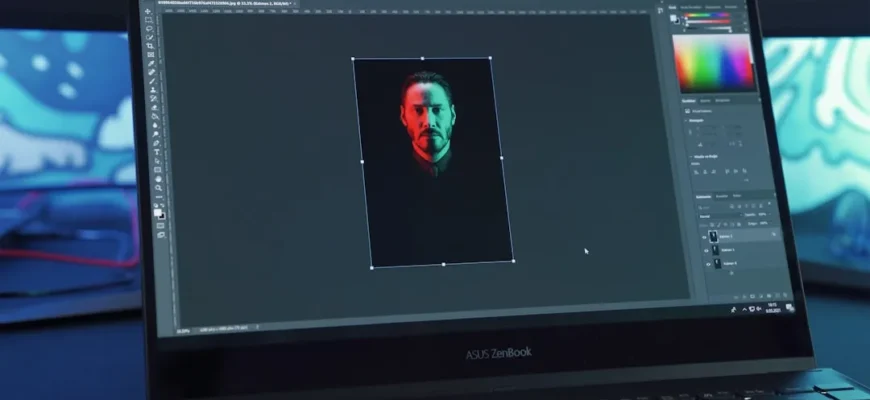
As a Photoshop Elements user, you might be wondering how the latest version integrates with Adobe Creative Cloud. The seamless connection allows you to enhance your productivity and expand your creative potential. In this article, we’ll explore the new integrations and features introduced in Photoshop Elements 2026, providing you with insights and practical examples to make the most out of them.
- Understanding the Cloud Integration
- Enhanced Asset Management
- Real-World Example
- Collaboration Made Easy
- Using Cloud Documents
- Accessing Adobe Stock Directly
- How It Works
- Enhanced AI Features through Cloud
- Practical Application
- Syncing with Mobile Devices
- Use Case Scenario
- Pro Tips for Maximizing Integration
- Challenges to Consider
- What’s Next for Photoshop Elements Users?
- Your Creative Journey Awaits
Understanding the Cloud Integration
The integration of Photoshop Elements 2026 with Adobe Creative Cloud transforms how you manage your projects. With access to cloud storage, you can easily save your files online. This means you’ll never have to worry about losing an important edit due to a hardware failure. Instead, you can focus on your creativity. One key benefit of cloud integration is the ability to access your projects from any device, ensuring versatility and flexibility.
For further reading, visit Adobe Creative Cloud.
Enhanced Asset Management
With Adobe Creative Cloud, you gain access to the Libraries feature, which allows you to organize assets such as brushes, images, and styles. Imagine working on a project where you frequently use specific images and assets. Instead of searching through your folders, you can store everything in a cloud Library. This feature not only saves time but also ensures you have consistent design elements across various projects. You can create multiple Libraries for different clients or types of projects, keeping everything streamlined and organized.
Real-World Example
Let’s say you’re designing a promotional poster for a seasonal sale. By using the Library feature, you can save your brand’s logo, color palette, and popular photos in one place. Whenever you’re designing, you can quickly drag and drop these assets into your project, speeding up your workflow dramatically. Furthermore, you can update assets in the Library, and all projects linked to those assets will be updated automatically, ensuring consistency.
For further reading, visit Photoshop Elements User Guide.
Collaboration Made Easy
Another major advantage of integrating with Adobe Creative Cloud is the enhanced collaboration features. If you’re working as part of a team, you can share files directly from Photoshop Elements. This eliminates the hassle of emailing large files or worrying about version control. Teams can leave comments and annotations directly within the files, streamlining feedback processes.
Using Cloud Documents
Cloud documents are a game-changer. When you save a project as a cloud document, any changes you make are automatically saved and updated for everyone with access to that document. This means that your team members can review and provide feedback without having to wait for your next email. You can even revert back to previous versions, giving you peace of mind while editing complex projects.
Accessing Adobe Stock Directly
Photoshop Elements 2026 integrates Adobe Stock, allowing you to access stock images directly from within the application. This feature is particularly useful when you need high-quality images quickly. Instead of leaving the application to find the perfect stock photo, you can search and license images without interruption. Additionally, you can preview images in your working document to better visualize how they will appear.
For further reading, visit Adobe Stock.
How It Works
Simply click on the Adobe Stock tab in your toolbar, and search for the images you need. Once you find an image, you can utilize it in your project immediately, saving you precious time. For example, if you’re crafting a website banner and need stunning visuals, this feature allows you to explore thousands of options without breaking your workflow. You can also curate a collection of your favorite images in one place, making it easier to return and use them later.
Enhanced AI Features through Cloud
Adobe’s Sensei technology, which powers various AI features in Photoshop Elements 2026, is enhanced through cloud integration. This means that the processing for complex tasks, such as automatic tagging and filtering, is done more efficiently. You can enjoy a smoother experience, allowing you to focus more on creative expression. One of the standout features includes Smart Resize, which intelligently adjusts canvas size while keeping your composition intact.
Practical Application
Suppose you have hundreds of photos from a recent event. Using the AI-powered facial recognition technology, you can quickly sort and tag images by individuals. This saves substantial editing time and improves your organization. Combining this with AI-driven editing suggestions means that even beginners can achieve professional-looking results with minimal effort.
Syncing with Mobile Devices
Adobe Creative Cloud also simplifies your workflow between desktop and mobile devices. You can easily sync your projects across devices, allowing you to start editing on the go and finish at your workstation. This is particularly beneficial for users who juggle multiple platforms. The mobile integration allows for immediate uploads of images taken on your smartphone directly to your cloud storage.
Use Case Scenario
Imagine you capture some stunning images on your smartphone during a weekend trip. You can upload those directly to your Creative Cloud library. Later, when you’re back home, you can open Photoshop Elements and access these images seamlessly, allowing for uninterrupted creativity. Additionally, any changes made on mobile can sync back to the desktop version instantly, allowing for a fluid transition between devices.
Pro Tips for Maximizing Integration
To truly take advantage of these integrations, here are some tips:
- Familiarize yourself with Creative Cloud Libraries. Experiment with organizing your assets for varied projects.
- Utilize Adobe Stock effectively. Don’t hesitate to explore different keywords to find high-quality visuals.
- Engage with the community. Use Adobe’s online forums to share insights and learn from fellow users.
- Regularly update both Photoshop Elements and your Creative Cloud application to access new features.
- Experiment with the various AI features. Familiarize yourself with how they can enhance your workflow and creative output.
Challenges to Consider
While there are many advantages to this integration, it’s also important to consider possible challenges. Users may experience connectivity issues if their internet connection is unstable, impacting their ability to save or access files. Additionally, annual subscription costs may be a concern for some users. Always evaluate whether the investment aligns with your creative needs and usage frequency. It could also be useful to explore the student and educator discounts Adobe offers, which can mitigate some financial concerns.
What’s Next for Photoshop Elements Users?
With the integration of Photoshop Elements 2026 into Adobe Creative Cloud, users can look forward to even more features in future updates. As Adobe continues to innovate, it’s likely that we will see deeper integration with cloud services and further enhancements, enhancing your creative experience and productivity. Keep an eye out for upcoming tutorials and feature releases on Adobe’s blog, which often provide great insights into maximizing new tools.
For more hands-on advice about optimizing your workflow, check out our article on customizing your workspace. And if you are looking to deepen your skills, our guide on enhanced guided edits might also be beneficial.
Your Creative Journey Awaits
With the new features and integrations in Photoshop Elements 2026, your creative journey is just beginning. The possibilities are vast, and the tools at your disposal are more powerful than ever. Embrace the new capabilities, experiment, and let your imagination flow. Happy editing!