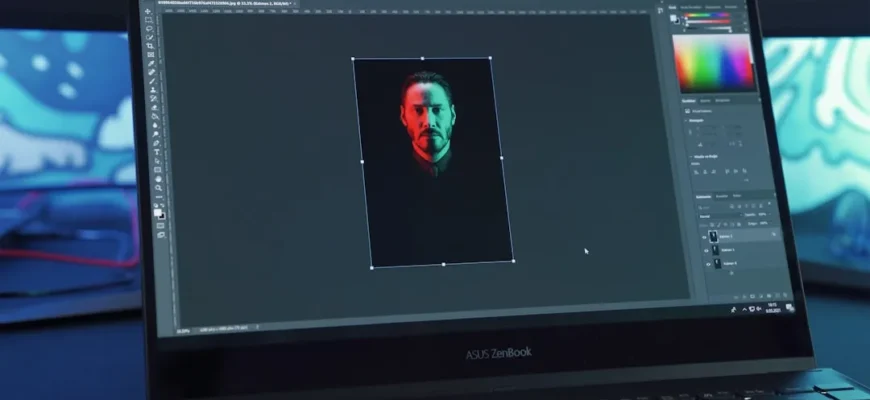
Introduction to Customizing Your Workspace
With each new version of Photoshop Elements, Adobe continues to innovate, and 2026 is no exception. One of the standout features this year is the enhanced customization options for the workspace. Whether you’re a seasoned professional or a hobbyist, being able to tailor your workspace can significantly enhance your editing experience. In this article, we will explore the new layouts and panel options that allow you to fine-tune your workspace to better suit your workflow.
Why Customization Matters
Customization is key when it comes to improving efficiency in Adobe Photoshop Elements. When your workspace reflects your preferred working style, you can streamline processes, reduce clutter, and increase productivity. Particularly for users who handle various types of projects, having the right tools instantly available can mean the difference between a tedious session and a creative flow.
New Workspace Layouts
Photoshop Elements 2026 introduces several pre-defined workspace layouts tailored to different tasks. For instance, you can choose layouts optimized for photo editing, graphic design, or even social media content creation. These layouts feature strategically placed panels to keep your most-used tools and options front and center.
Let’s break down these layouts:
- Photo Editing Layout: This layout streamlines the editing process with panels like Layers, Adjustments, and Effects visible in an ergonomic arrangement. It’s perfect for users primarily focused on photo enhancement.
- Graphic Design Layout: Ideal for designers, this setup emphasizes tools like Shapes, Text, and Styles. The organization promotes easy access to design elements, making it smoother to create visually engaging layouts.
- Social Media Content Layout: This layout is specifically designed for users preparing images for social media. It emphasizes resizing and cropping tools along with templates that save time when creating posts.
- Paint and Draw Layout: Geared toward artists and illustrators, this layout features brushes, patterns, and color panels prominently to foster creativity and ease of use.
- Batch Processing Layout: Suitable for users working with large volumes of photos, this layout provides easy access to batch processing tools, allowing for efficient edits across multiple files.
Creating Your Own Custom Layout
While the pre-defined layouts are helpful, Photoshop Elements 2026 offers even more flexibility by allowing you to create a custom layout. To do this, you simply click on the workspace menu and select “Customize Workspace.” Here, you can add, remove, or reposition panels according to your liking. For instance, if you frequently switch between the Adjustments and Effects panels, you can position them next to each other for quick access.
Consider focusing on your most common tasks when designing your custom workspace. Do you spend a lot of time correcting colors? Ensure the Color Correction panel is easily accessible. If you work with layers extensively, position your Layers panel prominently. Finding your rhythm in your workspace arrangement can eliminate unnecessary distractions.
New Panel Options and Features
Aside from layouts, new panel features enhance functionality significantly. Users will find that these improvements create a more intuitive experience overall. Here are some new panel options to explore:
Resizable Panels
One of the most noticeable updates is that panels are now resizable. If you need a closer look at the properties or tools in your Layers panel, just drag the edges to resize it. This can be particularly useful when working with intricate details in your images and needing more space for certain tools.
Additionally, resizable panels enable you to create a more ergonomic workspace. If your screen supports it, using a dual-monitor setup can be a game changer. You could keep your editing tools on one monitor, while the second displays your workspace or reference images. This setup allows for maximum visibility and ease without switching windows constantly.
Custom Panel Grouping
You can now group related panels together into a custom panel for even greater efficiency. Suppose you are working with text and shapes frequently; by grouping the Text, Shapes, and Styles panels, you can keep everything within arms reach. This makes switching between tools seamless, which is essential during an intensive editing session.
Furthermore, creating groups for advanced editing features can streamline your workflow. For example, if you’re applying various filters and effects, consider grouping those panels together. This method not only saves time but also keeps you organized, allowing you to focus fully on your creative process without getting lost in the overwhelming number of tools.
Favorites Panel
The addition of a Favorites panel allows you to star particular tools or effects that you use often. For example, if you frequently apply a specific filter, you can add it to your Favorites panel for quick access without having to navigate through various menus. This feature is especially beneficial for users who work on projects that require certain repetitive tasks, making positive alterations to workflow efficiency.
To ensure you’re utilizing the Favorites panel effectively, consider keeping track of your most-used adjustments and effects over time. As new features get added to the program in future updates, this panel can serve as a centralized hub for your preferred tools, adaptable to any change in your working style.
Real-World Applications
Let’s look at some practical applications of the new workspace features. Imagine you are a wedding photographer preparing to edit a large batch of photos. With the Photo Editing Layout, you can access multiple editing features simultaneously, allowing you to enhance colors while adjusting exposure, all without switching back and forth between panels.
For someone who specializes in social media marketing, the Social Media Content Layout simplifies the creation of visually compelling posts by providing quick access to resizing tools and templates. This adaptability ensures campaigns can be produced swiftly and efficiently, which is crucial in the fast-paced world of online marketing.
Alternatively, a graphic designer tasked with creating promotional material can utilize the Graphic Design Layout to keep text and image editing tools within reach, speeding up the design process. The custom panel grouping allows them to maintain a clear focus on specific tasks without distractions from other non-relevant tools. This helps them meet tight deadlines while still delivering high-quality work.
Maximizing Your Workspace Experience
To fully leverage your new workspace features, here are some tips to consider:
- Assess Your Workflow: Spend time understanding how you work best. Are you more efficient with certain tools? Identify those and organize your workspace accordingly.
- Experiment: Don’t be afraid to try different layouts and panel configurations. What works for you today might change as your editing style evolves.
- Stay Up to Date: Adobe frequently updates its software. Make sure to check in on any new features that might further enhance your workspace.
- Utilize Help Resources: Adobe provides a myriad of tutorials and forums where users can exchange tips about customizing their workspace. Take advantage of this collective knowledge.
- Regularly Reassess: Just like in personal organization, make it a habit to routinely evaluate your workspace and adjust it to accommodate any changes in your workflow.
Common Mistakes to Avoid
When customizing your workspace, users often make a few typical mistakes:
- Overcrowding Panels: It can be tempting to add too many tools to your workspace. Remember to keep it simple – only keep tools that you use regularly.
- Neglecting Shortcuts: While customizing your layout, don’t forget about keyboard shortcuts that can save you time.
- Ignoring Layouts: Before creating a custom layout, explore the pre-defined options first; they might be just what you need.
- Inconsistent Use: After customizing your workspace, be consistent in its use. Switching back to old habits can negate efficiency gains.
- Forgetting to Save Changes: Always save your custom layout settings. If your application crashes or you accidentally reset, saving ensures you won’t lose your customized setup.
Final Thoughts
In summary, the new workspace customization options in Photoshop Elements 2026 present an exciting opportunity to enhance your editing experience. By taking advantage of new layouts, resizable panels, and the ability to group tools, you can create a tailored workspace that fits your unique workflow. The flexibility to customize your experience will undoubtedly lead to improved efficiency and creativity in your projects.
For tips on enhanced guided edits or exploring the integration of Adobe Creative Cloud tools, be sure to check out other articles in this series. Each brings valuable insights and tips to help you make the most of your Photoshop Elements experience.

![Mastering the Art of Design: How Curved Lines Can Transform Your Creations [Expert Tips and Stats]](https://essential-photoshop-elements.com/wp-content/uploads/2023/04/tamlier_unsplash_Mastering-the-Art-of-Design-3A-How-Curved-Lines-Can-Transform-Your-Creations--5BExpert-Tips-and-Stats-5D_1681309695-335x220.webp)
![Softening Photo Edges: A Step-by-Step Guide to Achieving a Professional Look [With Statistics and Examples]](https://essential-photoshop-elements.com/wp-content/uploads/2023/04/tamlier_unsplash_Softening-Photo-Edges-3A-A-Step-by-Step-Guide-to-Achieving-a-Professional-Look--5BWith-Statistics-and-Examples-5D_1681648321-335x220.webp)