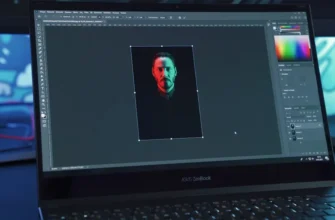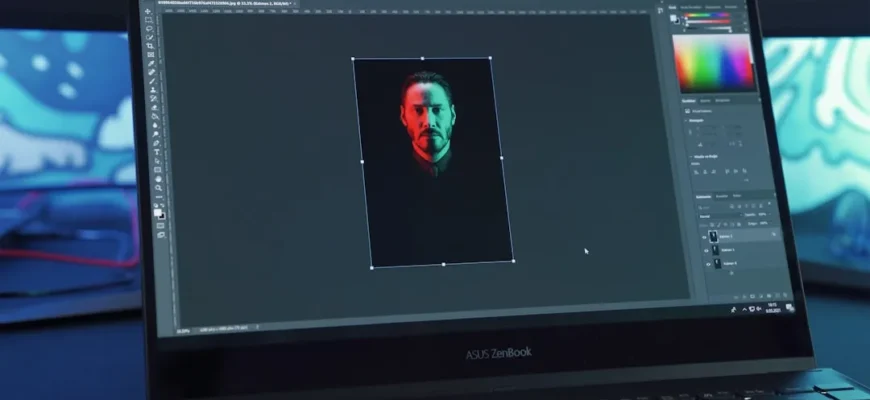
Photoshop Elements 2026 brings a host of exciting updates, and among the most notable are the enhanced guided edits. These features are designed for users who seek guidance without overwhelming complexity. This article will take you on a journey through the new functionalities in guided edits, showing you how to utilize them effectively, no matter your current proficiency level.
- The Power of Guided Edits
- Overview of New Guided Edits
- Delving into Each Feature
- 1. Smart Select
- 2. Interactive Overlays
- 3. Quick Recovery
- Use Cases
- For Beginners
- For Intermediate Users
- For Professionals
- Boosting Your Creativity and Efficiency
- Common Mistakes to Avoid
- Making the Most of Photoshop Elements 2026
- Your Journey to Better Edits
- Learn More
The Power of Guided Edits
Guided edits allow you to go from basic to extraordinary photos with step-by-step directions. Whether you’re looking to touch up portraits, optimize landscapes, or enhance creative projects, guided edits empower you to elevate your skills and ignite your creativity. Think of it as having a personal tutor, guiding you through the editing process.
Overview of New Guided Edits
In 2026, the guided edits have been significantly improved in several areas. From refined interfaces to new editing techniques, they cater to a variety of users. Here’s a breakdown of some enhanced features:
- Smart Select – Instantly identify subjects and areas you want to edit.
- Interactive Overlays – Visual aids help you track adjustments in real time.
- Quick Recovery – Easy backtracking through edits if things don’t go as planned.
- Enhanced Color Correction – New tools for precise color adjustments to make your images pop.
- Text Overlay Improvements – More stylish fonts and customizable text options for creative labeling.
Delving into Each Feature
Let’s explore these features one by one, detailing how you can maximize their benefits through practical usage scenarios.
1. Smart Select
The Smart Select feature is a game-changer for users unsure where to start. This tool uses AI algorithms to analyze your photo and identify key subjects like people, animals, or specific objects. You can take the following steps:
- Open your image in Photoshop Elements 2026.
- Select the Smart Select tool from the guided edits menu.
- Click on the subject you want to adjust; Photoshop Elements automatically creates a selection.
- Make your edits – apply filters, adjustments, or move the selection without fuss.
Imagine you have a family portrait where the background is cluttered. Using Smart Select, you can zero in on your family members and blur or darken the background, refocusing attention where it belongs. You might also experiment by selecting specific areas to brightening colors while keeping others muted, enhancing the visual storytelling of your image.
2. Interactive Overlays
Interactive overlays give you a visual guide for adjustments. This feature makes it easier to maintain composition and alignments. Here’s how to engage:
- After selecting your edit, open the interactive overlay.
- Adjust your edits based on the visual guide to ensure features like alignment and spacing are spot on.
- Finalize the edit when you’re satisfied with the results.
For example, if you want to center a subject in a composition, the overlay will guide you, ensuring everything aligns perfectly without needing to second-guess yourself. Additionally, you can use the overlays to explore different compositional styles, such as the rule of thirds or symmetry, which will elevate your editing game and make tutorials more relevant to each edit.
3. Quick Recovery
Accidental edits happen to the best of us, and Quick Recovery addresses this issue head-on. This feature allows you to instantly revert recent edits:
- Simply hit the recovery button if an edit doesn’t sit right with you.
- Continue working without losing momentum.
Envision yourself experimenting with layers in a complex project. You can easily try out different looks without constant worry about messing up the original. This means that creating a new style or effect doesn’t feel like a high-stakes gamble, so you can enhance your workflow and consistently push your creative boundaries.
Use Cases
Let’s explore a few scenarios for using these enhanced guided edits that can benefit different user profiles:
For Beginners
If you’re just getting started, use guided edits for basic tasks like enhancing brightness or cropping images. The step-by-step instructions lead you smoothly through the editing process. Start by using the Smart Select on a favorite landscape photo: enhance colors, adjust exposure, and maybe even add a filter! This foundational understanding will allow you to build confidence as you become more proficient in utilizing the extensive features available at your fingertips.
For Intermediate Users
If you’re familiar with Photoshop Elements but still find some aspects challenging, work with the interactive overlays. Say you’ve taken an outdoor family event and want to create a scrapbook page. Adjust alignments while layering text and images without losing sight of overall balance. Adding different elements such as stickers or digital brushes can also help create more personalized stories through your images and keep your creations fresh and captivating.
For Professionals
Even seasoned photographers can benefit from the quick recovery option. During high-paced editing for an upcoming gallery opening, reverting accidental modifications quickly speeds up the process without compromising on quality. You can also utilize the enhanced color correction features to ensure that skin tones are just right or that landscapes reflect the vibrancy of nature accurately, all while staying in your creative flow thanks to the ability to recover edits quickly.
Boosting Your Creativity and Efficiency
These enhanced guided edits don’t just make life easier; they can significantly elevate your creative output. With the right techniques learned through these tools, you’ll find yourself not only more efficient but also more confident in your editing choices. For instance, learning to effectively use each feature can help you streamline any project, be it personal or professional. Additionally, by experimenting with various combinations of features, you may discover innovative editing methods that set your work apart – and creative breakthroughs often stem from combining familiar tools in new ways.
Common Mistakes to Avoid
Even with all the new features, common pitfalls can hinder your progress. Here are some you’ll want to sidestep:
- Skipping the guided tutorials: These are there to help, don’t bypass them!
- Rushing through edits: Take your time to explore every adjustment.
- Ignoring the interactive feedback: Your results can improve dramatically when you consider the overlays.
- Overusing effects: While it can be tempting to apply every look at once, restraint often yields better results.
Making the Most of Photoshop Elements 2026
As you immerse yourself in these enhanced guided edits, consider how they can fit within your overall workflow. For even more customization, check out Customizing Your Workspace to enhance the editing process. Also, integrating these features with your creative cloud account can broaden your editing possibilities and projects as you learn more. The interconnectedness of tools can mean the creation of truly unique projects that feature both your editing prowess and your personal style.
Your Journey to Better Edits
With each new update in Photoshop Elements, a world of creative possibilities awaits you. Enhanced guided edits are your new companion for photo editing that’s both intuitive and powerful. Whether you’re a newbie or looking to polish your established skills, embracing these new features can lead to truly remarkable results. Don’t forget to participate in forums and communities dedicated to Photoshop, as sharing your discoveries and challenges can lead to even more growth.
So go ahead – dive into Photoshop Elements 2026 and explore how these guided edits can transform your images. Remember, every great editor started just where you are now, embracing the tools and making them their own.
Learn More
To deepen your understanding of Photoshop Elements 2026, consider exploring Adobe Creative Cloud integration or expand your skill set with content-aware features. Every resource at your disposal can benefit your journey toward mastery. Take advantage of online tutorials, community workshops, and even YouTube channels dedicated to Photoshop tutorials for a comprehensive learning experience.
Stay curious and keep experimenting!