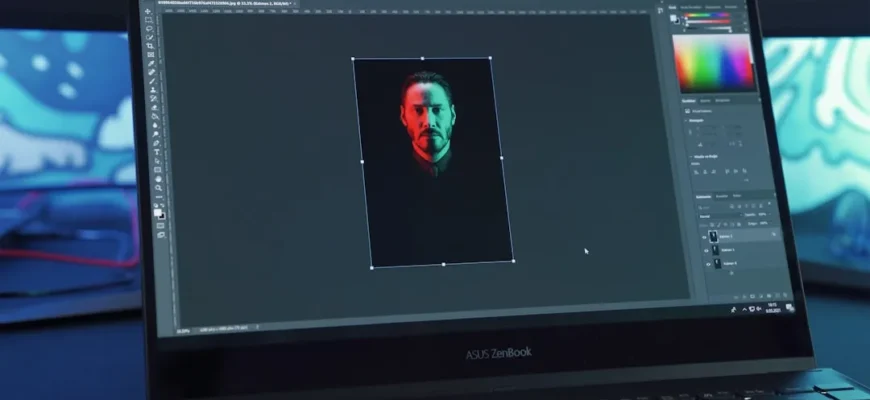
- Avoiding Photoshop Elements Performance Issues
- Recognizing Signs of Slow Performance
- System Requirements Check
- Optimizing Software Settings
- Managing File Sizes and Formats
- Clearing Cache and Temporary Files
- Disable Unnecessary Plugins and Extensions
- Limiting Background Applications
- Regular Software Updates
- Prevention: Best Practices
- Resources for Further Support
- When All Else Fails
Avoiding Photoshop Elements Performance Issues
Adobe Photoshop Elements is a powerful tool that can sometimes feel sluggish. If you’ve experienced slow loading times or unresponsive behavior while editing, you’re not alone. Many users encounter performance issues at some point. Factors like system specifications, software settings, file types, and even system interference can all contribute to performance lags. Moreover, the complexity of your projects – especially when dealing with high-resolution images or multiple layers – can significantly strain your system’s resources. A better understanding of how these elements interact within the software can help users implement effective solutions.
Recognizing Signs of Slow Performance
Before jumping into solutions, it’s crucial to know the signs of performance issues. Here are some common indicators:
- Slow startup time
- Lag during editing or playback of video clips
- Delayed response to commands
- Frequent crashes or freezes
- Long rendering times for large files
If any of these sound familiar, it’s time to troubleshoot. Moreover, users should be aware that the frequency of these issues can escalate when working on larger projects or as the software accumulates files and settings over time. Recognizing these symptoms early allows for timely interventions that can mitigate further complications.
System Requirements Check
First things first: let’s confirm that your system meets the necessary requirements for Photoshop Elements. Having adequate RAM, a dedicated graphics card, and sufficient storage is vital. Generally, Adobe recommends at least 8 GB of RAM for better performance. For users with lower specs, consider the following potential upgrades:
- RAM: Upgrading to 16 GB can significantly improve the software’s responsiveness. Performance tests have shown that systems with higher RAM allocations not only load faster but also manage multiple layers more efficiently.
- SSD: Switching from a hard drive to a solid-state drive can cut down loading times drastically. SSDs have faster read/write speeds, allowing for quicker access to files and programs, which is crucial for resource-intensive applications like Photoshop Elements.
- Video Card: A dedicated graphics card can speed up rendering and image processing. Integrated graphics may suffice for simpler tasks, but high-quality image editing requires more robust hardware to render effects and transitions smoothly.
For specific technical requirements, refer to the official Adobe documentation. Regularly monitoring system specifications against software requirements ensures a smoother experience and helps avoid performance issues caused by resource shortages.
Optimizing Software Settings
Sometimes the settings within Photoshop Elements can be the culprit. Tweaking preferences can lead to smoother performance. Here’s how:
- Adjust Memory Usage: Go to Edit > Preferences > Memory Usage. Increase the RAM allocated to Photoshop Elements to enhance performance. This is particularly beneficial when working with large files or numerous layers.
- Graphics Processor Settings: Make sure to enable the GPU acceleration option under Edit > Preferences > Performance. This can speed up several processes and improve overall responsiveness during editing sessions.
- Cache Levels: Set Cache Levels to 4 under the same Performance settings to improve performance when working with large files. Increasing cache levels allows Photoshop to store more data, which can be quickly accessed during the editing process.
After making adjustments, restart the software to see if performance improves. Delving into more advanced settings, such as adjusting the size of the cache, can also yield significant benefits depending on the specific types of edits you are performing.
Managing File Sizes and Formats
Working with excessively large files can slow down any system. To mitigate this issue, consider saving in different formats or reducing file sizes. For example, use JPEG or PNG for images instead of TIFF or PSD, which can be significantly larger. When working on multi-layer projects, consider flattening layers or merging non-essential ones to reduce the file size without compromising quality. This not only speeds up loading times but also enhances overall software performance. Additionally, you can follow guidelines from our article on file compatibility to ensure you are using the correct format. Choosing the right format based on the intended output can further alleviate resource strain.
Clearing Cache and Temporary Files
Over time, temporary files can accumulate, causing your software to run slower. Clearing the cache regularly can help. Here’s how:
- Close Photoshop Elements.
- Go to the folder where Photoshop Elements stores its temp files. This is usually in the AppData\temp folder for Windows.
- Delete unnecessary files. Be cautious to avoid deleting files that might be essential for your current projects.
- Restart Photoshop Elements and check if performance improves. It’s good practice to regularly monitor this folder and clean it up to maintain optimal performance.
Remember to back up any important files before clearing the cache. Utilizing disk cleanup tools can also assist in managing these temporary files effectively.
Disable Unnecessary Plugins and Extensions
Plugins and extensions add functionality, but they can also hog resources. If you’re experiencing performance issues, consider disabling them:
- Open Photoshop Elements.
- Go to Edit > Preferences > Plugins.
- Uncheck any plugins that you don’t actively use. Disable plugins that could be outdated or unnecessary based on your typical usage patterns.
After adjusting these settings, restart the application and monitor performance. Regularly reviewing your installed plugins can help you understand which ones truly enhance your workflow versus those that merely take up resources.
Limiting Background Applications
Having multiple applications running simultaneously can sap your system’s resources. Before launching Photoshop Elements, try closing unnecessary applications and tabs. You can also use the Task Manager (on Windows) or Activity Monitor (on macOS) to see what is consuming resources and close those programs as needed. Prioritizing essential applications can help free up CPU power and RAM, enabling Photoshop Elements to operate more smoothly. This practice becomes increasingly important during resource-heavy tasks such as video editing or 3D rendering.
Regular Software Updates
Keeping your software up to date is essential not only for security but also for performance improvements. Adobe frequently releases updates that optimize software functionality. To check for updates, go to Help > Updates within Photoshop Elements, or browse Adobe’s website. Moreover, embracing feature updates can present users with enhanced tools and support, making for a smoother workflow. Since software updates can vary in size and impact, you’d be well served to review update notes to see what performance improvements apply to your work.
Prevention: Best Practices
To prevent future performance issues, consider adopting these best practices:
- Regularly update your software and check system compatibility.
- Perform routine maintenance on your computer to clear out unnecessary files and run disk defragmentation if you’re using a hard drive.
- Consider using external drives for archiving larger projects instead of keeping them on your primary drive. Organizing files systematically on external storage can also reduce clutter and enhance searching efficiency.
- Monitor your system’s performance using built-in tools for RAM and CPU usage. Keeping track of performance metrics can help you identify potential bottlenecks before they become significant issues.
Staying ahead with these tips can save you a lot of frustration in the long run. Educational resources and community forums can also provide insights into common pitfalls and effective troubleshooting methods. Investing time in understanding software best practices makes for a more productive editing experience.
Resources for Further Support
If you continue to experience performance issues, you might consider reaching out to the Adobe support community or consulting forums like Adobe’s Community Forum. Engaging with experts and fellow users can provide insights and solutions tailored to your specific situations. Additionally, YouTube and instructional sites offer a wealth of tutorials that may cover specific performance enhancements or troubleshooting steps capable of streamlining your editing workflow.
When All Else Fails
In some cases, performance issues can be attributed to deeper system problems. If you’ve exhausted all options and your system specifications are optimal, consider consulting a professional technician to check for hardware issues or software conflicts. Understanding whether your performance problems are hardware or software-related will help you make more informed decisions regarding upgrades, repairs, or changes in software usage. Sometimes, even minor adjustments may yield significant performance boosts.



![Discover the Best Photoshop App for iPad: A Personal Story and Helpful Guide [2021 Statistics Included]](https://essential-photoshop-elements.com/wp-content/uploads/2023/04/tamlier_unsplash_Discover-the-Best-Photoshop-App-for-iPad-3A-A-Personal-Story-and-Helpful-Guide--5B2021-Statistics-Included-5D_1681792054-335x220.webp)
![Uncovering the Truth: How to Tell if a Picture is Photoshopped [Expert Tips and Statistics]](https://essential-photoshop-elements.com/wp-content/uploads/2023/05/tamlier_unsplash_Uncovering-the-Truth-3A-How-to-Tell-if-a-Picture-is-Photoshopped--5BExpert-Tips-and-Statistics-5D_1683062802-335x220.webp)